Network application
Every step of the independent driver application in the app (verify contact, personal details, licence, vehicle, ID and selfie, consent, payout, review) and the application statuses.
On this page
Independent drivers apply once before they can take network offers. After Create account, the app opens Your application and stays there until you are approved. Your answers are saved as you go. For the whole path from applying to the first offer, see Drive for the network and take offers.
At a glance
| Screen | What it shows |
|---|---|
| Your application | The eight steps with Done or To do, and Start application / Continue application |
| A step | Its fields, Back, Save and exit and Continue |
| Application status | Application in review, Changes requested, You are approved, Application not approved |
| Account status | Account suspended |
Sign out is at the bottom of the hub.
The steps
The steps are numbered like the checklist (Step 2 of 7); Review and submit is the Final step. Each step has Back (to the step before, or to the checklist once Verify contact is done), Save and exit (saves and returns to the checklist) and Continue. If a half-filled step cannot be saved, This step could not be saved asks whether to Stay or Leave anyway. While the keyboard is open only Continue shows, so the fields keep the room. The checklist refreshes from the server each time you return to it. A step's errors say what to fix, never just "Required".
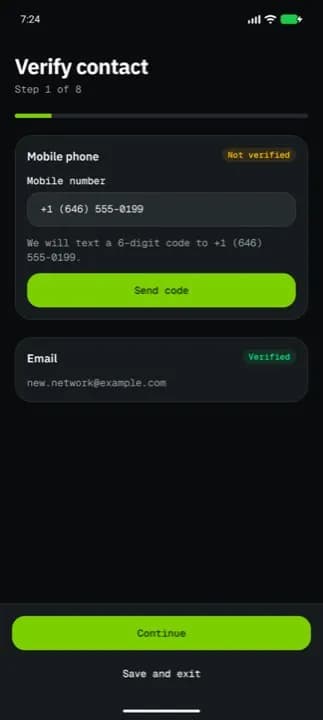
1. Verify contact
| Part | What to do |
|---|---|
| Mobile phone | Enter the Mobile number if needed and tap Send code, then type the 6-digit code. The badge turns from Not verified to Verified. |
| Tap Send code and type the code from the email |
Continue waits until both are verified.
2. Personal details
| Field | Required | Notes |
|---|---|---|
| First name, Last name | Yes | |
| Date of birth | Yes | You must be 18 or older |
| Street address, City | Yes | |
| Country | Yes | The country you live in |
| Postal code (ZIP code for the United States) | Yes | Checked against the country's format, for example M5V 2T6 in Canada |
3. Driver license
| Field | Required | Notes |
|---|---|---|
| License class | Yes | The classes offered follow your country |
| License number | Yes | At least 5 letters or digits |
| Expiry date | Yes | As printed; it can't be in the past |
| License front, License back | Yes | Photos of both sides |
4. Vehicle
| Field | Required |
|---|---|
| Vehicle type | Yes |
| License plate, Make, Model | Yes |
| Insurance, Registration | Photos, each with its expiry date |
| Vehicle front | Photo |
| Vehicle side (optional), Vehicle rear (optional), Cargo area (optional) | Photos |
5. ID and selfie
Upload a Photo ID and a Selfie (the selfie opens the front camera).
6. Consent and terms
Tick I consent to a background check and I accept the driver terms (v…). The terms say you work as an independent contractor and are paid weekly.
7. Payout setup
Connect payout account opens a secure page to connect the bank account you are paid to. The badge shows Connected or Not connected.
8. Review and submit
Every step with Done or To do and what is still missing (Fix these first). Submit application sends it for review.
Document slots
Each photo slot shows its status: Not uploaded, In review, Approved or Rejected (with the reason). Insurance and registration ask for the expiry date first, like 2027-06-30. If the camera or photos are blocked, the app tells you to allow them in Settings.
Statuses
| Status | Meaning | What happens next |
|---|---|---|
| Draft (Your application) | Not submitted yet | Finish all steps, then submit |
| Application in review | The network team is checking it | The app says this usually takes a few minutes; you are notified of the decision |
| Changes requested | Something must be replaced | Replace the listed documents and tap Resubmit for review |
| You are approved | You can drive | Tap Start driving, then go online |
| Application not approved | Rejected | Contact support with your registered email if you think it is a mistake (Call support) |
| Account suspended | Network access is stopped | Call support to find out why and how to restore it |
Good to know
- After approval, keep your documents valid in Profile > Documents; an expired licence, insurance or registration stops offers.
- Your payout account can be changed later on Earnings > Payout account.
Related articles
- How-toDrive for the network and take offersApply as an independent network driver, go online in your zones, and accept or decline delivery offers before they expire.
- Page guideOffers tab and availabilityThe network driver's Offers tab, the Availability and zones screen with its go-online checklist, a new offer, offer details, accepting and declining, and Ratings and standing.
- How-toInstall the app and sign inAccept your invitation, install the NemiRoute driver app, sign in with your company ID and turn on fingerprint or face unlock.
- How-toLocation and battery settingsWhich location permission to give, when NemiRoute shares your location, and how to keep Android from stopping it.
Still stuck?
Ask your courier company: they can see your account. Or tell us what you were trying to do.