Sign-in screens
Every field and button of the driver app's sign-in, Find my company ID, Accept invitation, Forgot password, Set a new password and Become a network driver screens, and the unlock screen.
On this page
The first screens of the NemiRoute driver app: signing in, joining your company from an invitation, getting a new password, and signing up as an independent network driver. Company drivers get their sign-in details from their company; independent drivers create their own account. For the steps in order, see Install the app and sign in.
At a glance
| Screen | Opens from | What it is for |
|---|---|---|
| Sign in | opening the app | Sign in as a company or independent driver |
| Find my company ID | Find my company ID | Get your Company ID by email |
| Accept invitation | the invitation email, or Have an invitation? Accept it | Set your password and join your company |
| Forgot password | Forgot password? | Get a 6-digit code and choose a new password |
| Set a new password | after signing in with a temporary password | Replace the temporary password |
| Become a network driver | Become a network driver | Create an independent account |
| Unlock | opening the app with fingerprint or face unlock on | Unlock without typing your password |
Sign in
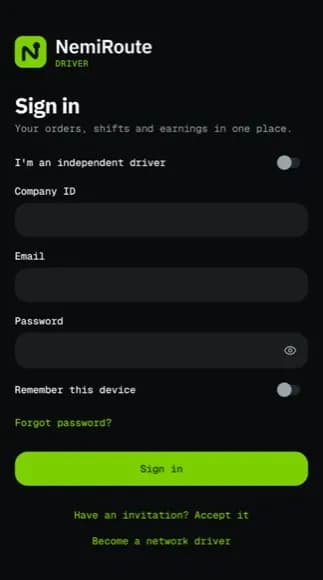
| Field | What to enter | Required | Notes |
|---|---|---|---|
| Company driver / Independent | who you drive for | Pick Independent if you signed up yourself | |
| Company ID | your company's ID | Company drivers | It's in your invitation email |
| your email | Yes | ||
| Password | your password | Yes | |
| Remember my email | switch | No | Fills in the company ID and email next time |
After you have signed in on this phone once, your company's name and logo show above the form while the Company ID is that company, whether or not Remember my email is on.
| Button or link | What it does |
|---|---|
| Sign in | Signs you in. It stays at the bottom of the screen, above the keyboard. The keyboard's return key moves from Company ID to Email to Password, and on Password it signs you in. |
| Find my company ID | Opens a sheet: enter Your email, tap Email my company ID. If it belongs to a company driver, the ID is emailed. Done closes. |
| Forgot password? | Opens Forgot password |
| Have an invitation? Accept it | Opens Accept invitation (shown with Company driver selected) |
| Become a network driver | Opens the sign-up form (shown with Independent selected) |
| Dispatcher? Sign in here | Switches the form to staff sign-in: Email and Password, no company ID. Driver? Sign in here switches back. See Dispatch from your phone |
| Privacy policy, Driver terms | Open the documents |
Sign-in messages
| Message | What to do |
|---|---|
| Could not sign in | Check the email and password, or tap Reset your password |
| This is an independent driver account. Sign in without a company ID. | Tap Sign in as independent driver |
| This is a company driver account. Enter your company ID. | Tap Enter company ID |
| No connection | Signing in needs the internet. Try again with signal. |
| Account suspended | Contact your dispatcher or support |
| No driver account for this company any more. Ask your company. | Your company removed you as a driver or ended your app access. Ask your company. |
| Update required | Your app is too old (see below) |
Accept invitation
Opened from the invitation email, the Invitation code is already filled in.
| Field | What to enter | Required |
|---|---|---|
| Invitation code | the code from the email or invitation page | Yes |
| Password | a new password | Yes |
| Confirm password | the same again | Yes |
Join and sign in sets the password and signs you in. Invitation not valid means the link is old or was used; ask your dispatcher for a new one.
Passwords
A bar under the password shows how strong it is: Too short, Weak, Fair, Good or Strong, with a tip such as "Try upper and lower case, a number". A password must have at least 8 characters and rate at least Fair, which takes two of these: upper and lower case letters, a number, a symbol, 12 characters or more.
Forgot password
- Forgot password: enter Company ID (optional) and Email, tap Send code. The screen moves on at once; the email follows within a minute (check spam). The app says the same thing whichever email you type, so no code arriving can mean the email has no active driver account: your company removed you, or the Company ID you entered isn't a company you drive for. Leave Company ID empty if you're not sure.
- Enter code: type the 6 digits in Verification code and tap Verify. The hint counts the attempts left; after 5 wrong codes you see Too many attempts and need a new code. Resend code works again after 2 minutes (it shows the countdown).
- New password: choose a password you have not used before, confirm it and tap Update password. Then sign in.
Reset link expired means you waited too long; start from Forgot password again.
Set a new password
If your company gave you a temporary password, the app shows Set a new password (You must change your temporary password before continuing.): enter the Current password, the new one twice, and tap Save password. Sign out leaves without changing it.
Become a network driver
| Field | Required |
|---|---|
| First name, Last name | Yes |
| Yes | |
| Mobile phone | Yes |
| Password (and Confirm password) | Yes |
Create account creates it and opens Your application (see The network application). Already have an account? Sign in goes back.
Unlock with fingerprint or face
When Unlock with fingerprint or face (Unlock with Face ID / Unlock with Touch ID on an iPhone) is on (in Profile > Preferences), the app locks when you open it and after 2 minutes away. Tap Unlock, or Use password instead to sign in with your password.
Update required
A full-screen Update required message means this version is no longer supported. Tap Open store, update the app, then tap I have updated, check again.
Good to know
- Signing out does not end your shift.
- If you drive for more than one company, or for a company and the network, the workspace name at the top right of the tabs, next to the bell, opens Switch workspace.
Related articles
- How-toInstall the app and sign inAccept your invitation, install the NemiRoute driver app, sign in with your company ID and turn on fingerprint or face unlock.
- How-toDrive for the network and take offersApply as an independent network driver, go online in your zones, and accept or decline delivery offers before they expire.
- How-toLocation and battery settingsWhich location permission to give, when NemiRoute shares your location, and how to keep Android from stopping it.
- How-toClock in, take breaks and clock outStart your shift with the vehicle check, take breaks, and end the shift with the odometer reading.
Still stuck?
Ask your courier company: they can see your account. Or tell us what you were trying to do.