Offers tab and availability
The network driver's Offers tab, the Availability and zones screen with its go-online checklist, a new offer, offer details, accepting and declining, and Ratings and standing.
On this page
Independent network drivers get delivery offers instead of assigned orders. The Offers tab (network drivers only) lists them; Availability and zones decides when and where you get them. For the whole path step by step, see Drive for the network and take offers.
At a glance
| Screen | What it is for |
|---|---|
| Offers tab | Your online status and the open offers |
| Availability and zones | The Online switch, the Go online checklist and your Zones |
| New offer | The full-screen offer with the countdown |
| Offer details | One offer with its map, pay and packages |
| Ratings and standing | Your rating and account standing |
The Offers tab
The top card shows You are online or You are offline (or Status unavailable), your zones (or No zones selected) and an Online / Offline badge. Below it: Availability and zones and Ratings and standing.
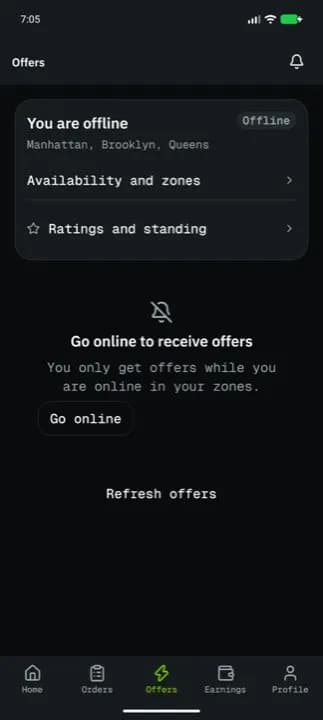
| Message | Meaning |
|---|---|
| Go online to receive offers | You only get offers while online in your zones. Go online. |
| Waiting for offers | Online, nothing open. New offers appear with a sound and vibration; keep the app open. |
| Offers are unavailable | Your network account is not active. View standing. |
Each offer card shows the pay (with the bonus), the pickup and delivery areas, the distance, a priority badge and Accept offer / Decline offer; Expired when its time ran out. Tap the card for the details. Refresh offers reloads the list while online.
Availability and zones
| Part | What it does |
|---|---|
| Online switch | You are online (Offers arrive while you stay online.) or You are offline. Off until the checklist is done: Finish the checklist to go online. |
| Go online checklist | Five rows, each Done or To do |
| Zones | Tap the areas you work in. You only get offers with a pickup in these zones. |
| Checklist row | When it is To do | Button |
|---|---|---|
| Account approved | Not approved or suspended | View standing |
| Documents valid | A document is expired or rejected | Review documents |
| Vehicle selected | No active vehicle | Manage vehicles |
| Zone selected | No zone picked | (pick one below) |
| Location permission on | Location is off | Allow location |
Your vehicle is the one on your network application: Done shows its make, model and plate, and Vehicles lists it. You can't add or edit it in the app; contact support to change it.
While online the app shares your location (see Location and battery settings).
A new offer
A new offer fills the screen (NEW OFFER) with a sound and vibration. The ring counts down: every offer is time-limited, and the time left shows under NEW OFFER (for example 30 seconds left, or 4:05 left while there are minutes to go).
- Your pay for this delivery, with the bonus included;
- From and To areas (exact addresses after you accept), distance, packages, priority.
| Control | What it does |
|---|---|
| Swipe to accept | Slide right to take it (an Accept offer button when reduce motion or a screen reader is on) |
| Decline offer | Opens the decline sheet |
| Decide later | Closes it; the offer stays on the tab until it expires |
When it closes you see OFFER CLOSED with Another driver got there first, This offer expired or You are at your order limit (finish an order first), and View my orders / Back to offers.
Offer details
The map, Distance, Pay, Bonus (None when there is none), priority and Packages, with Accept offer and Decline offer.
| Sheet | Fields and buttons |
|---|---|
| Accept this offer? | Accept for $18.50 confirms; Cancel |
| Decline this offer? | Quick reasons Too far, Pay too low, Not available, or Reason (optional); Confirm decline, or Keep offer |
After acting, the screen says Offer accepted (Find it under Orders.), Offer declined, Another driver got there first or This offer expired.
Ratings and standing
| Standing | Meaning |
|---|---|
| Good standing | Keep accepting and completing jobs on time |
| Warning | Recent ratings are low; another drop may trigger a review |
| Under review | Support is reviewing your account; you may not get offers meanwhile |
| Suspended | You can't go online or receive offers |
It also shows your rating out of 5 and its trend, Acceptance rate, Completion rate and What customers say.
Good to know
- Accepted offers appear under Orders and on Home; deliver them like any order.
- Offer notifications can be turned on or off in Profile > Preferences.
Related articles
- How-toDrive for the network and take offersApply as an independent network driver, go online in your zones, and accept or decline delivery offers before they expire.
- Page guideNetwork applicationEvery step of the independent driver application in the app (verify contact, personal details, licence, vehicle, ID and selfie, consent, payout, review) and the application statuses.
- How-toLocation and battery settingsWhich location permission to give, when NemiRoute shares your location, and how to keep Android from stopping it.
- How-toInstall the app and sign inAccept your invitation, install the NemiRoute driver app, sign in with your company ID and turn on fingerprint or face unlock.
Still stuck?
Ask your courier company: they can see your account. Or tell us what you were trying to do.