Invite colleagues and set what they can do
Give people at your company their own portal login and choose whether they can place orders, see or pay invoices, manage addresses and see colleagues.
On this page
Each person gets their own login, so nobody shares a password. Only your company's primary contact can invite, change or remove colleagues; others with View company contacts can see the list.
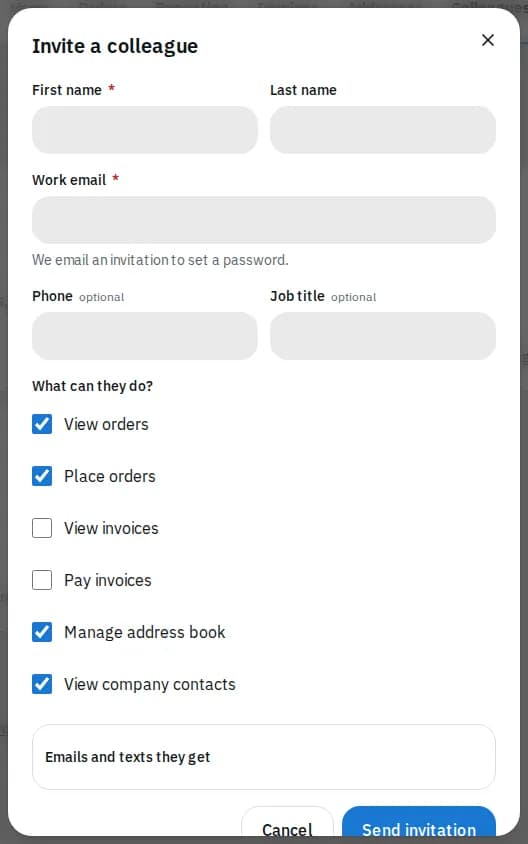
Invite a colleague
- Open Colleagues in the top bar (on a phone, in your account menu).
- Click Invite a colleague.
- Enter the First name, Work email and, if you like, Phone and Job title.
- Under What can they do?, tick their permissions (see the table below).
- Open Emails and texts they get to choose their notifications. They can change these later on their profile.
- Click Send invitation.
They get an email with a link to set a password (see Sign in and manage your account). Until they do, their card says Invited.
What each permission allows
| Permission | Lets them |
|---|---|
| View orders | See and track your company's orders |
| Place orders | Place orders, import spreadsheets and set up repeating orders |
| View invoices | See invoices, payments and statements |
| Pay invoices | Pay invoices by card and manage saved cards and auto-pay |
| Manage address book | Add, change and remove saved addresses |
| View company contacts | See the Colleagues page |
New invitations start with viewing and placing orders, managing addresses and viewing contacts ticked. Invoices are off until you tick them.
Change access, resend or remove
Open the ⋮ menu on a colleague's card:
- Edit access changes their details, permissions and notifications; click Save changes. The email can't be changed once they have signed in.
- Resend invitation (or Send invitation for someone marked No login yet) emails a fresh link. The same button also shows on the card.
- Remove, then Remove access: they can no longer sign in. Orders they placed stay on your account, and you can invite them again later.
Each card ends with Can: and the permissions that person has. Your own permissions are listed under What you can do on your profile.
Related articles
- How-toPay invoicesSee what you owe, pay one or several invoices by card, download receipts and statements, and let saved cards pay invoices on their due date.
- How-toConnect your systems with API keys and webhooksCreate API keys so your own software can place and track orders, and webhooks so it hears about new orders and status changes.
- Page guideColleaguesThe Colleagues page of the portal: who has access, inviting a colleague, what they can do and see, their notifications, resending an invitation and removing access.
- ConceptWhat the emails and texts you get meanEvery email and text the portal and your courier send about orders, invoices and your account, when each one goes out and which ones you can switch off.
Still stuck?
Ask your courier company: they can see your account. Or tell us what you were trying to do.