Colleagues
The Colleagues page of the portal: who has access, inviting a colleague, what they can do and see, their notifications, resending an invitation and removing access.
On this page
Colleagues lists the people at your company with portal access. Everyone with View company contacts can see the list; only your company's primary contact can invite, change or remove people. For the task step by step, see Invite colleagues and set what they can do.
At a glance
| Area | What it does |
|---|---|
| Invite a colleague | Opens the invite form (primary contact only) |
| Colleague cards | Name, job title, email, badges and what they can do |
| ⋮ menu | Edit access, Send invitation / Resend invitation, Remove |
People who aren't the primary contact see Only your company's primary contact can add or change colleagues.
The colleague cards
Each card shows the name ("(you)" on your own), job title, email and badges:
| Badge | Meaning |
|---|---|
| Primary contact | Manages colleagues, API keys and webhooks |
| Invited | Invitation sent, not accepted yet |
| Awaiting approval | Your courier still has to approve them |
| Active | Can sign in |
| No login yet | Active contact who never got an invitation |
| Inactive | Can't sign in |
The last line says Can: and lists their permissions. For people without a login, Send invitation (or Resend invitation) is also shown on the card.
The invite and edit form
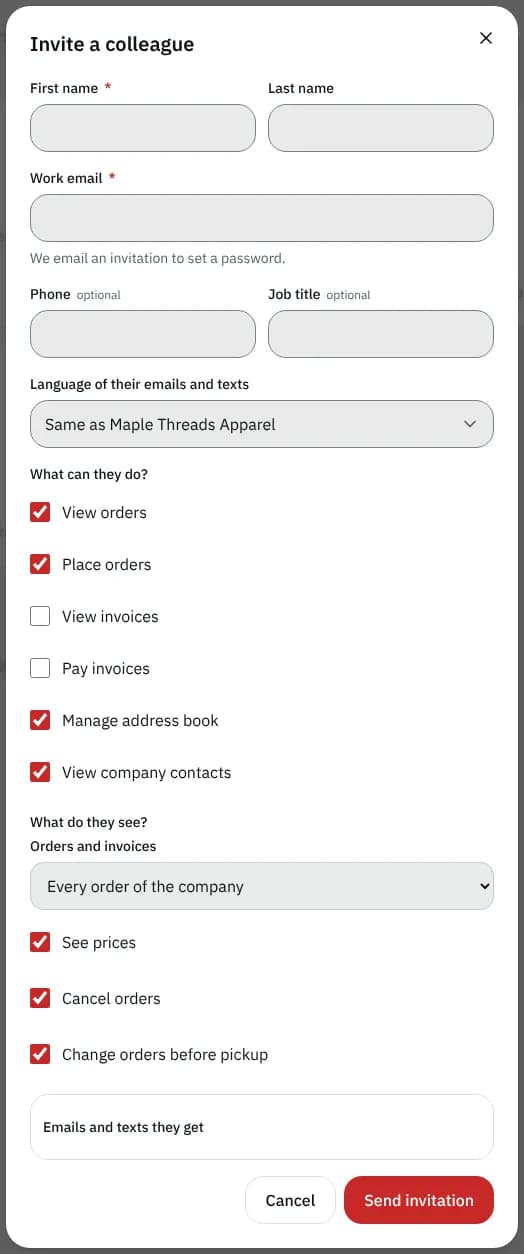
| Field | What to enter | Required | Notes |
|---|---|---|---|
| First name | Yes | ||
| Last name | No | ||
| Work email | Yes | They get an invitation to set a password. Can't change once they have signed in. | |
| Phone, Job title | No | ||
| Language of their emails and texts | Same as your company, or a language |
What can they do?
| Permission | Lets them |
|---|---|
| View orders | See and track orders |
| Place orders | Book, import and repeat orders |
| View invoices | See invoices, payments and statements |
| Pay invoices | Pay online and manage saved cards |
| Manage address book | Add, change and remove addresses |
| View company contacts | See this page |
A new colleague starts with View orders, Place orders, Manage address book and View company contacts. You can't give a right you don't have yourself (it shows (you don't have this)). Your own permissions are set by your courier.
What do they see?
Not shown for the primary contact.
| Field | Options |
|---|---|
| Orders and invoices | Every order of the company, Orders of their locations (when your company has locations) or Only their own orders |
| Locations | Tick their locations. With Orders of their locations they see and order for those; otherwise the first is their default for new orders. |
| See prices | Show prices on orders, the order form and order emails (without it, the total is left out of their emails) |
| Cancel orders | Allow them to cancel |
| Change orders before pickup | Allow them to change placed orders |
Emails and texts they get
| Choice | Meaning |
|---|---|
| Email, Text messages | How they hear from your courier. Texts need a phone number. |
| Order updates | Placed, driver assigned, picked up, out for delivery, delivered, problems |
| Invoices and payments | New invoices, reminders, receipts, auto-pay |
| Every order of your company | Also updates on orders colleagues place |
| Which order updates | The company's usual updates or Only the ones I pick |
| How often (email) | An email per update or One daily summary |
Send invitation (new) or Save changes (edit) saves; Cancel closes.
Remove access
Remove asks Remove … ?: they can't sign in any more, orders they placed stay on your account, and you can invite them again later. Remove access confirms, Keep goes back.
Good to know
- It's just you for now shows when nobody else has access.
- The primary contact can't be edited or removed here; ask your courier.
Related articles
- How-toInvite colleagues and set what they can doGive people at your company their own portal login and choose whether they can place orders, see or pay invoices, manage addresses and see colleagues.
- How-toSign in and manage your accountOpen your courier's customer portal, reset a forgotten password, accept an invitation and choose which updates you get.
- How-toKeep an address bookSave the places you send from and to, mark favourites and defaults, and import a list of addresses so ordering takes a few taps.
Still stuck?
Ask your courier company: they can see your account. Or tell us what you were trying to do.