Pay invoices
See what you owe, pay one or several invoices by card, download receipts and statements, and let saved cards pay invoices on their due date.
On this page
Your courier invoices completed orders on your billing cycle. You need View invoices to see them and Pay invoices to pay; your primary contact sets this (see Invite colleagues).
See what you owe
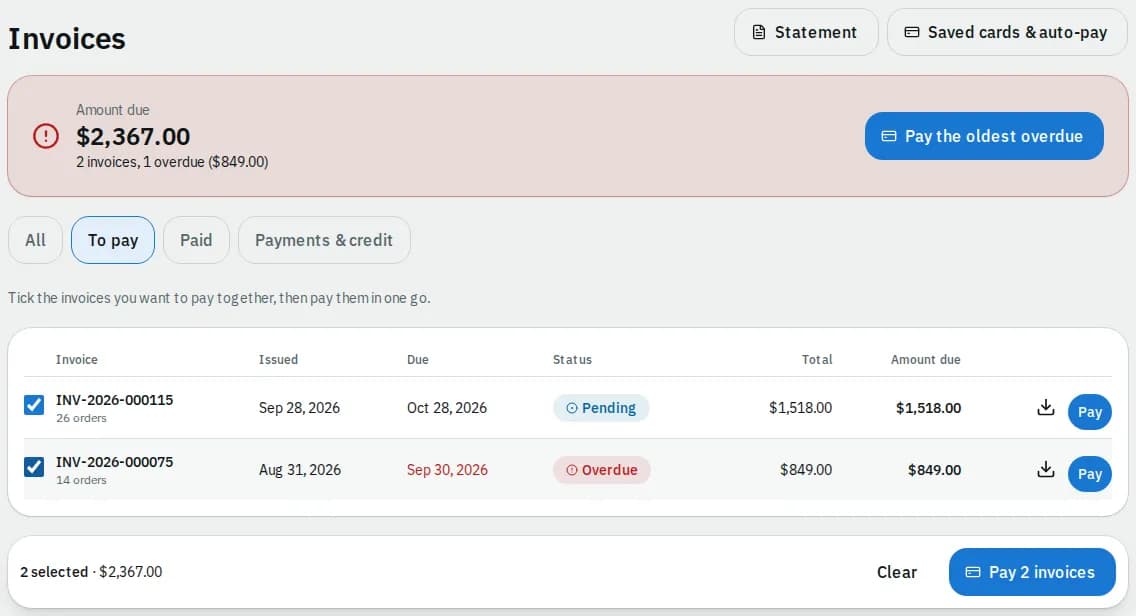
Open Invoices. The banner at the top shows the Amount due, how many invoices are open and how much is overdue. The tabs filter the list: All, To pay, Paid and Payments & credit.
Click an invoice number to open it: the orders on it, the amounts with tax, and the payments made. Print and Download PDF give you the invoice itself.
Pay one or several invoices
- Click Pay next to an invoice (or Pay the oldest overdue in the banner). To pay several at once, open To pay, tick the invoices and click Pay 2 invoices (or however many you picked) in the bar at the bottom.
- Check the amount. If you have credit with your courier, Use my credit takes it off this payment.
- Click Pay with the amount. Your courier's payment partner opens a secure card page; enter your card there and confirm.
- You come back to the portal, which shows Confirming your payment and then Payment received, and takes you to the invoice.
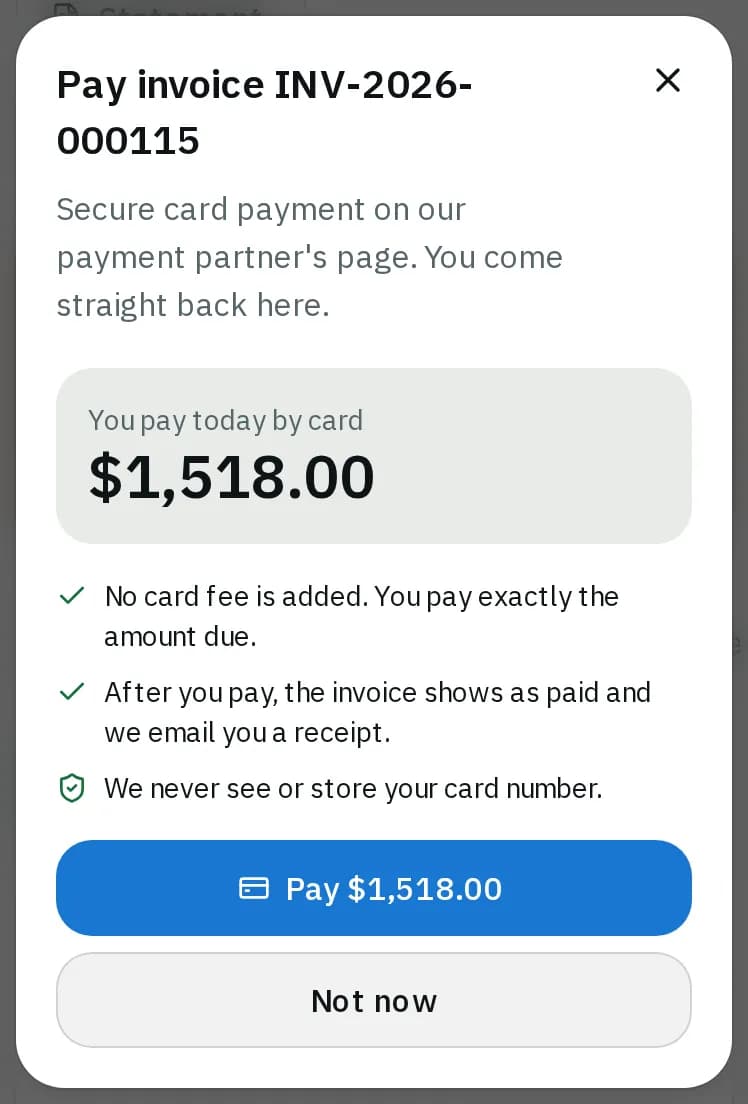
If your courier takes bank debits, choose Card or Bank debit in the payment window. A bank debit clears in a few business days: the return page says Bank debit authorized and the invoice shows as paid (with a receipt by email) once your bank confirms it. Some couriers add a card surcharge; the window shows it before you pay, and bank debit has none. The portal never sees your card number or bank login. The paid invoice shows Paid in full and a receipt is emailed to you.
Receipts and statements
- Receipts: on an invoice, each card payment under Payments has a Receipt link. The Payments & credit tab lists every payment with a Receipt button, your Credit on your account and any credit notes as PDFs.
- Statement: click Statement, choose Last 90 days, This year or Pick dates, and click Download PDF. It lists every invoice and payment in the period, what is still open and your credit.
Saved cards and auto-pay
Open Saved cards & auto-pay from the Invoices page or your account menu. It is there for people with Pay invoices who see every order of the company.
- Click Add a card. The secure card page opens; save the card there and you come back to the portal.
- Click Turn on auto-pay. The card is then charged the amount due on each invoice's due date.
- To stop, click Turn off auto-pay. The bin icon next to a card removes it; removing your only card also turns auto-pay off.
If an automatic payment fails, you get an email and it is tried again after 1, 3 and 5 days. After that it stops, and the invoice is listed on this page for you to pay yourself.
Related articles
- How-toReport a problem or ask for helpTell your courier about a late, damaged or misdelivered order, ask any other question, and follow the answers in one place.
- How-toInvite colleagues and set what they can doGive people at your company their own portal login and choose whether they can place orders, see or pay invoices, manage addresses and see colleagues.
- How-toTrack your ordersSee what is on the way on your Overview, follow an order step by step, download proof of delivery and share a tracking link with the receiver.
- Page guideInvoicesThe Invoices page of the portal: the amount due banner, the tabs, the invoice table, paying several invoices at once, the payment window, Payments & credit and the statement.
- Page guideInvoice detailsOne invoice in the portal: its orders, amounts and tax, payments and receipts, print, download and pay, and the Confirming your payment page you return to after paying.
- Page guideSaved cards and auto-payThe Saved cards & auto-pay page of the portal: saving a card or bank account, turning auto-pay on and off, failed automatic payments and removing a card.
Still stuck?
Ask your courier company: they can see your account. Or tell us what you were trying to do.