Give credit with a credit note
Issue a numbered credit note to a customer, apply it to an open invoice, and use their credit balance on later invoices.
On this page
A credit note gives a customer money back as credit, for example after a late delivery or a price mistake. It gets a number (CN-… unless you changed the credit note numbering under Settings > Billing > Invoices & documents) and a PDF. The credit sits on the customer's balance and is used against their open or next invoices. This needs the Finance, Operations Manager or Admin role.
Issue credit against an invoice
- Open the invoice (it must be sent or finalized, not a draft or void: finalize a draft first).
- Open the ⋯ menu and pick Issue credit note.
- Enter the Amount (the total credit, tax included) and the Reason. The amount can't be more than the invoice still bills (its total minus earlier credit notes against it); the field says how much that is. Issue a larger goodwill credit from the customer instead. The reason is printed on the credit note. When the invoice carried tax, the dialog shows how much of the amount is tax: the credit note takes the invoice's tax back in proportion, prints it, and lowers your tax report.
- On an open invoice, leave Apply it to … now ticked to take the credit off this invoice straight away. Anything above the amount due stays as credit.
- Leave Email the credit note to the customer ticked to send the PDF to their billing contact, or untick it.
- Click Issue credit.
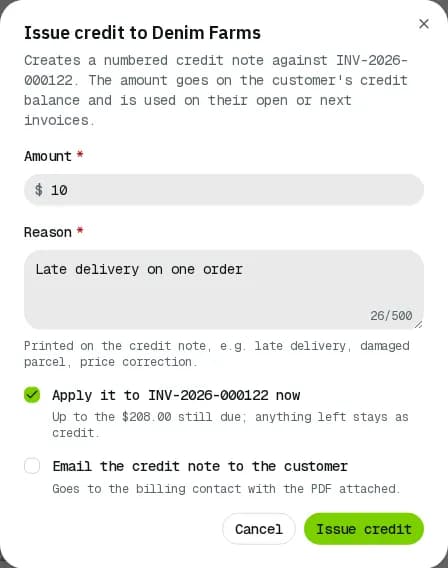
Issue credit from the customer
- Open the customer from Customers and open Billing.
- In Credit and statement, click Issue credit, fill Amount and Reason, and click Issue credit.
The same card shows Credit available, the latest Credit notes (click a number for its PDF) and Recent credit activity.
Use the credit
- An open invoice of a customer with credit shows a Credit available badge. Open ⋯ > Apply credit, check Credit to apply (capped at the credit and the amount due) and click Apply credit.
- Customers can also use their credit when they pay in the portal, see Pay invoices.
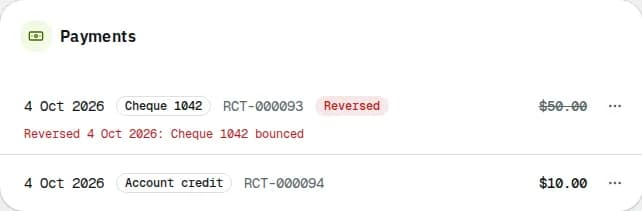
- The applied credit shows as an Account credit payment on the invoice.
A credit issued from the customer (not against an invoice) is a goodwill credit and carries no tax.
To bring credit notes into your accounting software, use Export for QuickBooks / Xero in the invoices list's jobs menu and pick Credit notes (QuickBooks credit memos or Xero credit notes).
Credit also builds up by itself: a payment larger than the invoice, part of a payment nobody applied, or a paid invoice that you void (cheque and transfer money goes to credit; for card money you choose between a refund and credit).
Cancel a credit note issued by mistake
- Open the customer from Customers and open Billing.
- In Credit and statement, under Credit notes, click the cancel button next to the note.
- Give a Reason and click Cancel credit note.
Its amount comes off the customer's credit, the note (and its PDF) shows Cancelled and it leaves the tax report and accounting export. Only while the customer still has that credit: if it paid an invoice, reverse that Account credit payment first. Voiding the invoice a note was issued against cancels the note too.
Pay credit back to the customer
Pay the customer by cheque, transfer or cash, then on their Billing page click Pay out credit, fill Amount (up to the credit available), Paid by, Reference and Reason, and click Record payout. The credit goes down and the payout shows on the statement. Card money goes back with Refund on the invoice instead.
Early-payment discounts
When a payment of the discounted amount (terms like "3% 10, net 30") arrives by the offer's last day, the discount is booked by itself as an early-payment credit note (no tax) applied to the invoice, and the invoice is paid. Paying the full amount in time leaves the difference as credit.
Related articles
- How-toCreate and send invoicesBill a customer's delivered orders plus any fees or discounts, check the draft, send or finalize it, print it and chase payment.
- How-toPay invoicesSee what you owe, pay one or several invoices by card, download receipts and statements, and let saved cards pay invoices on their due date.
- ConceptWorked examples - tax, invoices and paymentsReal numbers for GST/HST and QST by province, rounding, tax-included prices, exemptions, credit notes, due dates, early-payment discounts, aging, how a payment is spread, statements, credit limits and your own subscription bill.
- ConceptWorked examples - cash on delivery and card paymentsReal numbers for cash collected at the door (short payments, who carries the loss, short remittances, aging) and for card payments (overpayments held as credit, refunds, voids, fees, net to you and the card surcharge).
Still stuck?
Tell us what you were trying to do. A person reads every message.