Create and send invoices
Bill a customer's delivered orders plus any fees or discounts, check the draft, send or finalize it, print it and chase payment.
Watch: From delivered orders to a paid invoice
1:59Find work you have not billed, build and check the invoice, send it, and record a part payment.
On this page
An invoice bills one customer for delivered orders, plus any fees or discounts. The Finance, Operations Manager and Admin roles create and send invoices; Dispatchers and Viewers can only look at them.
Create a draft
- Open Invoices and click New invoice. You can also start from a customer's page (Create invoice) or from the Unbilled orders tab.
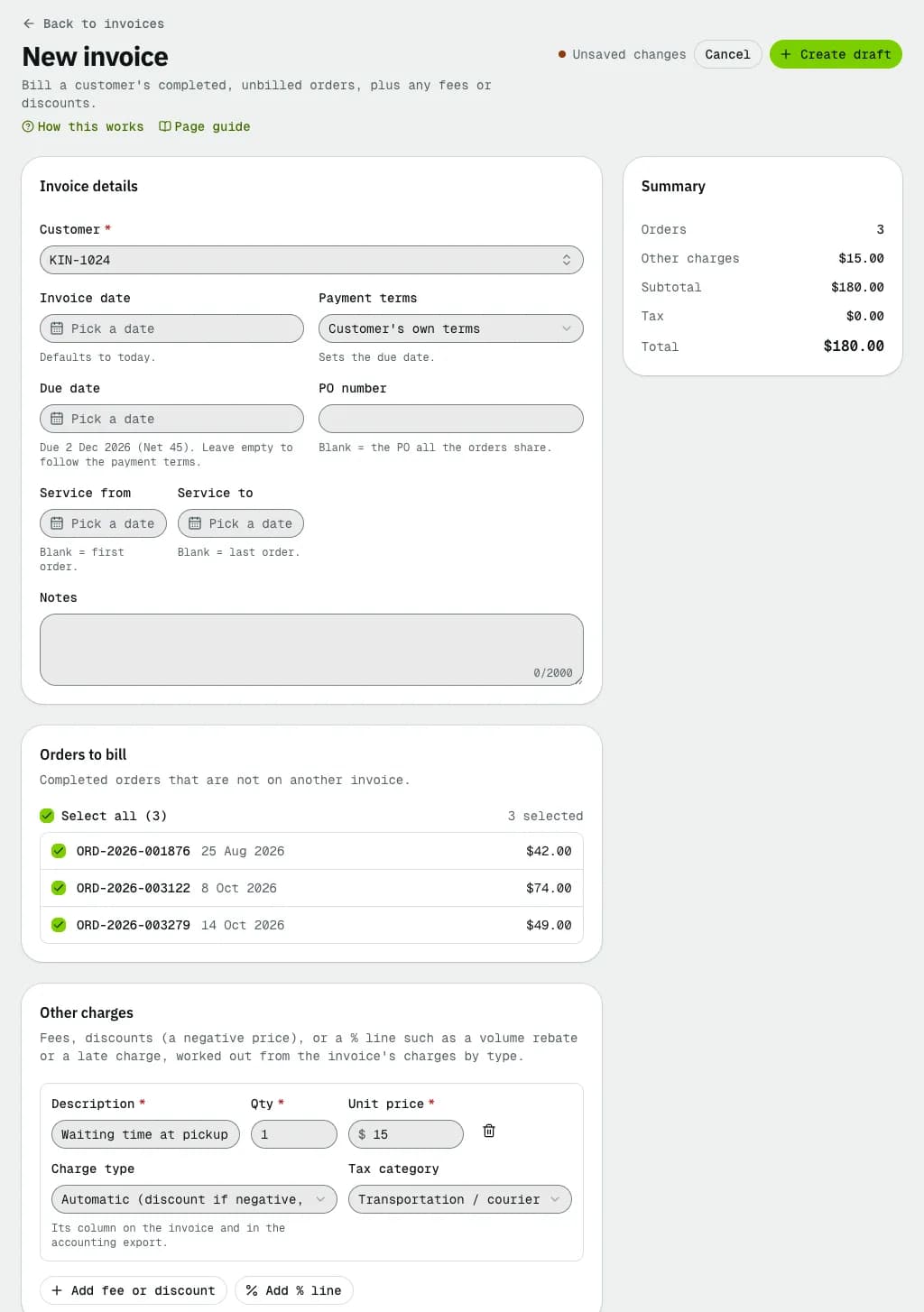
- Pick the Customer. Under Orders to bill you see their delivered orders that are not on another invoice, all ticked. Untick the ones to leave for later.
- If needed, change the Invoice date (today by default), the Payment terms (the customer's own terms by default; they set the due date), set a Due date by hand if you agreed a different one (leave it empty to follow the terms), and add Notes. Terms with an early-payment discount show the discounted amount and its deadline on the invoice, the PDF and the portal; when the customer pays the discounted amount in time, the discount is booked by itself as an early-payment credit note and the invoice is paid.
- For a fee or a discount, click Add fee or discount and fill Description, Qty and Unit price. Use a negative price for a discount. Charge type sets its column on the invoice and in the accounting export; set Tax category to Not taxable if no tax applies. Add % line adds a percentage line (a rebate or a late charge).
- Check the Summary on the right (tax and total update as you fill the form, else Calculated on save) and click Create draft at the top of the page.
Check and edit the draft
The draft opens with its orders, charges, Amounts and Details. If a Check the tax before you send this warning shows, fix it in Tax settings and click Recalculate.
- Click Edit to change the orders, charges, date, terms or notes, then Save changes. The customer cannot be changed.
- To throw a draft away, open the ⋯ menu and pick Delete invoice. Its orders become billable again.

Send or finalize
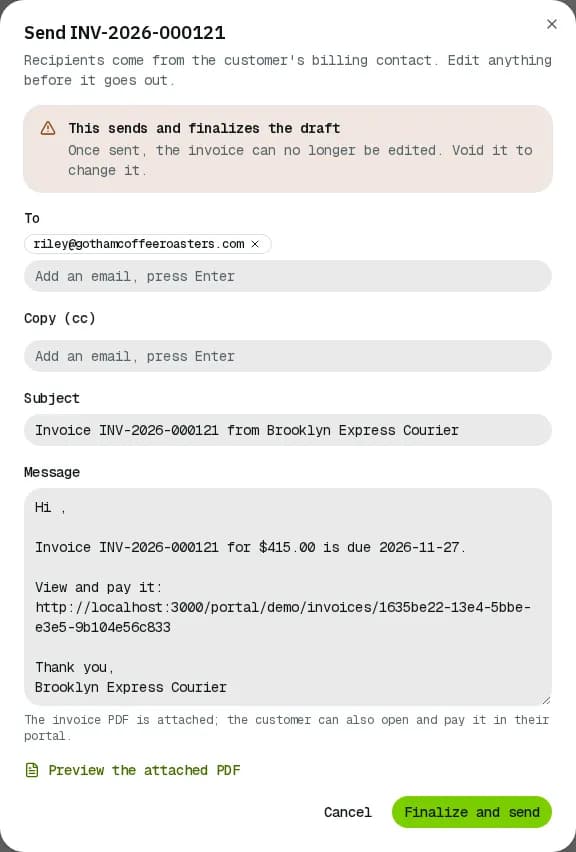
- Click Send invoice. The email goes to the customer's billing contact: change To, Copy (cc), Subject or Message if you like, and use Preview the attached PDF to check it.
- Click Finalize and send. The invoice is locked, becomes due and is emailed with the PDF; the customer can also pay it in their portal.
To lock it without emailing, click Finalize without sending and hand it over yourself. To send several drafts at once, tick them in the list and click Send in the bar.
Print, PDF and reminders
- Print and PDF are at the top of every invoice. In the list, the row ⋯ has Print and Download PDF; tick several invoices and click Download PDFs for one combined PDF (up to 100).
- For an open invoice, ⋯ > Send payment reminder emails your reminder with the pay link. In the list use the row's Send reminder, or tick several and click Send reminders.
- Details > Next reminder shows when the automatic reminder goes out, or Off · turn on when reminders are off.
Automatic invoicing
A note at the top of the list says when automatic invoicing or reminders are off. The schedule and grouping are set in Billing defaults. The ⋯ button next to New invoice holds the billing tools:
- Preview next invoice run: pick a Run date and see who would be invoiced, and why others would not. On today's date, Create … now runs it.
- Generate invoices now: bills every customer with automatic invoicing right away, ignoring the schedule.
- Check for overdue invoices and Send reminders now (preview): each shows what it would do before you confirm.
Related articles
- How-toRecord and reverse paymentsRecord cheques, bank transfers and cash on one or several invoices, send receipts, undo a payment recorded by mistake and find any payment.
- How-toGive credit with a credit noteIssue a numbered credit note to a customer, apply it to an open invoice, and use their credit balance on later invoices.
- How-toBilling defaults and automatic invoicingDecide when invoices are created and how orders are grouped, set payment terms and reminders, and set the invoice footer, payment instructions and numbering.
- How-toTax settingsTurn tax on for invoices, enter your registration numbers, choose which address decides the tax, and check the result with the calculator.
- ConceptWorked examples - tax, invoices and paymentsReal numbers for GST/HST and QST by province, rounding, tax-included prices, exemptions, credit notes, due dates, early-payment discounts, aging, how a payment is spread, statements, credit limits and your own subscription bill.
- Page guideInvoicesEvery part of the invoice list: totals, quick filters, days-past-due chips, the table, bulk actions, the Unbilled orders tab and the billing tools menu.
- Page guideNew and edit invoice formEvery field of the invoice form: customer, dates and terms, PO and service period, the orders to bill, fees, discounts and % lines, and the summary.
- Page guideInvoice detailOne invoice end to end: its status, every action (send, finalize, record payment, apply credit, credit note, reminder, statement, void, delete, PDF), the payments list, amounts with tax, details and history.
Still stuck?
Tell us what you were trying to do. A person reads every message.