Invoice detail
One invoice end to end: its status, every action (send, finalize, record payment, apply credit, credit note, reminder, statement, void, delete, PDF), the payments list, amounts with tax, details and history.
Watch: From delivered orders to a paid invoice
1:59Find work you have not billed, build and check the invoice, send it, and record a part payment.
On this page
The invoice page shows one invoice: what it bills, what tax it charges, what has been paid and what is still due, with every action for its current status. Open it from Invoices, a customer's Invoices tab, a payment or a link in a notification. Everyone who can see invoices can open it; the actions need invoice edit rights unless stated (Admin, Operations Manager and Finance by default; Dispatchers and Viewers only look).
At a glance
| Area | What it shows or does |
|---|---|
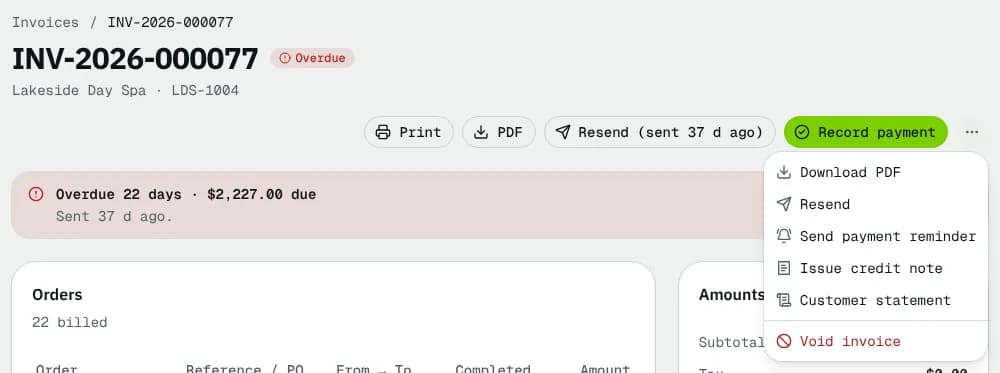
| Header | Invoice number, status badge, Credit available and Owed on account badges, the customer, action buttons and the ⋯ menu. From tablet width up it stays stuck under the top bar while you scroll |
| Pay status banner | What is due and when, for Pending and Overdue invoices |
| Orders | The orders it bills, with each order's charges by type |
| Charges | Fees, discounts and % lines (only when there are some) |
| Payments | Every payment, credit and refund, with a ⋯ per payment |
| Amounts | Charge totals, subtotal, each tax line, total, paid, amount due, tax notes |
| Details | Dates, terms, early payment, bill-to, PO, service period, sent, reminders, paid and void info, notes |
| History | Changes, emails and payments, newest first |
Header badges
- Credit available …: the customer has credit on account that can pay this open invoice (see Apply credit).
- Owed on account …: a reversed payment took back credit that was already used; the customer owes it.
Actions by status
Print (opens the PDF) and PDF (downloads it) are there for everyone. On a phone, PDF and Send / Resend move into the ⋯ menu (PDF as Download PDF); Finalize without sending is a button only on wide screens (1536 px and up) and in the ⋯ menu below that. An action shown as a button is not repeated in the menu.
| Status | Buttons | In the ⋯ menu |
|---|---|---|
| Draft | Edit, Finalize without sending (wide screens), Send invoice | Finalize without sending (below wide screens), Customer statement, Delete invoice |
| Pending / Overdue | Send (or Resend (sent … ago)), Record payment | Send payment reminder (once sent), Apply credit (when the customer has credit), Issue credit note, Customer statement, Void invoice |
| Paid | — | Issue credit note, Customer statement, Void invoice |
| Voided | — | Customer statement |
Delete invoice needs invoice delete rights. Customer statement is open to everyone who sees the invoice.
Send invoice, Resend and Send payment reminder
The send dialog shows who gets the email and lets you change it:
| Field | Notes |
|---|---|
| To | At least one address; type one and press Enter. Starts with the customer's billing contact |
| Copy (cc) | Optional extra addresses |
| Subject / Message | Pre-filled from your email template; edit freely |
| Preview the attached PDF | Opens the PDF that will be attached |
- On a draft the dialog warns This sends and finalizes the draft; the button is Finalize and send. The invoice is locked, becomes Pending (due) and is emailed with the PDF. The customer can also open and pay it in their portal.
- On an invoice already sent, a note says when it was sent; Resend invoice emails another copy.
- Send payment reminder uses your reminder template with the pay link and the PDF; the button is Send reminder. A draft can't be reminded about.
Finalize without sending
Locks the draft and makes it due, without emailing it. Print it or hand it over yourself, and send it from here later if you want. If the customer has credit on account and automatic use of credit is on, the credit pays the invoice first.
Record payment
For a cheque, bank transfer or cash received outside the portal.
| Field | What to enter | Required |
|---|---|---|
| Amount received | Starts at the amount due | Yes, above 0 |
| Method | Cheque, Bank transfer, Cash, Other | Yes |
| Received on | The day it arrived (not in the future) | Yes |
| Cheque number / Transfer reference / Reference | Up to 100 characters; printed on the receipt and searchable in Payments | No |
| Notes | Up to 500 characters | No |
The dialog says what follows: the balance after this payment, Pays the invoice in full, or that the excess becomes customer credit. Each payment gets a receipt number. To spread one cheque over several invoices, use Record payment on Payments.
Apply credit
Shows the customer's Available credit. On an invoice billed to a head office it also counts the head office's credit ("with the bill-to account's"): the branch's own credit is used first, then the head office's is moved to the branch and applied. The same happens when credit is applied automatically. Enter the Credit to apply (capped at the credit balance and the amount due) and click Apply credit.
Issue credit note
Creates a numbered credit note against this invoice. The amount goes on the customer's credit balance and is used on their open or next invoices.
| Field | Notes |
|---|---|
| Amount | Required, up to what the invoice still bills (its total minus earlier credit notes against it; the field shows it). On an invoice with tax this is the total credit, tax included; the dialog shows how it splits into the net amount and each tax (for example HST), reversing the invoice's tax pro rata so your tax report goes down |
| Reason | Required, printed on the credit note (late delivery, damaged parcel, price correction) |
| Apply it to … now | Open invoices only: applies up to the amount still due; the rest stays as credit |
| Email the credit note to the customer | Sends it to the billing contact with the PDF |
Credit notes are not offered on drafts or voided invoices. Voiding an invoice cancels its credit notes too (they show Cancelled): the credit they gave is taken back off the customer's credit (the part applied to this invoice comes back with the void and is taken back with it). If the customer already spent that credit on other invoices, the void is refused; issue a credit note for the rest instead. See Give credit with a credit note.
Customer statement
Everything invoiced and paid for this customer in a period (the last 90 days to start), with what is still open: Opening, Invoiced, Paid / credited and Closing, the account activity with a running Balance, and the aging of open invoices. Print, PDF or Email statement (to the billing contact).
Void invoice
For a Pending, Overdue or Paid invoice that should not be paid. A draft is deleted instead.
- Reason is required (up to 500 characters).
- If part was paid by card, choose Refund … to the card (card fees come back to you pro rata) or Keep … as customer credit for their next invoices.
- Money paid by cheque, transfer or credit goes to the customer's credit balance.
The invoice stops counting, its orders become billable again, and this can't be undone.
Delete invoice
Drafts only. The orders become available for billing again and you return to the list.
Pay status banner
For Pending and Overdue invoices: Overdue … days · … due (red) or … due {date} (blue), with when it was sent and how much is paid so far, or Not sent to the customer yet. With edit rights, an overdue sent invoice offers Send reminder and an unsent one Send to customer.
Orders and charges
Orders lists each order with its number (opens the order), Reference / PO, From → To and Service (only when an order has them), Completed and Amount. An order with several kinds of charge lists them under its amount (delivery, fuel surcharge, accessorials and so on). No orders on this invoice shows when it bills charges only.
Charges lists each fee, discount or % line: description, quantity × price (or the % rule), its charge type, No tax or its tax category when not courier work, and the amount.
Payments
Each row: date, method (Card (Stripe), Account credit, Cheque, Bank transfer, Cash, Other), receipt number, badges (Reversed, … refunded, … to credit for an overpayment) and the amount. A reversed payment is struck through with the date and reason. No payments recorded yet when empty.
| Payment ⋯ | Shown when | Needs |
|---|---|---|
| Receipt (PDF) | Always | — |
| Email receipt | Not reversed | Invoice edit rights |
| Refund to card… | A card payment with money left to refund | Payment edit rights (payments:write) |
| Reverse payment… | A manual or credit payment, not reversed, invoice not voided | Invoice edit rights |
- Reverse payment… is for a bounced cheque or a payment recorded by mistake. A Reason is required. The amount is owed again (a Paid invoice reopens), credit it used goes back to the customer, an overpayment is taken back from their credit, and the payment stays in the history marked reversed.
- Refund to card… sends money back to the card: Full, 50% or Custom amount, plus a Reason. The refunded amount is owed again on the invoice, or comes out of the customer's credit if it was kept as credit. The card fees on the refunded part come back to you pro rata. Card payments can't be reversed, only refunded.
Amounts
Amounts shows, when more than one kind of charge is billed, the total per charge type (for example Fuel surcharge, with its rate as Fuel surcharge (18%) when every order on the invoice has the same fuel-to-delivery ratio within 0.05 points; no % when they differ, or when a fuel line was added by hand), then Subtotal, one row per tax (for example HST (13%), or GST (5%) and QST (9.975%), with the province when orders go to several), Total, Paid and Amount due. Tax shows Exempt for an exempt customer.
Under it a note says what decided the tax: "Tax follows the delivery address of each order" (or pickup, or your business), with "prices include tax" when that is on, or the customer's exemption certificate. On a draft, Check the tax before you send this lists problems such as a missing registration number or an address with no recognised province; fix them in Tax settings and click Recalculate.
Details
| Field | What it shows |
|---|---|
| Invoice date / Due date | "(set by hand)" when the due date was typed |
| Terms | For example Net 30 |
| Early payment | "Pay … by … (…% off, …)" while an early-payment discount runs. A payment of that amount by that day books the discount as an early-payment credit note (an Account credit payment) and the invoice is paid |
| Bill to | The account that pays for this customer, when set |
| Location / Group | When the invoice was split by location or group |
| PO number / Service period | When set |
| Sent | Date and how long ago, or Not emailed |
| Next reminder | The date the automatic reminder goes out, or Off · turn on (links to Billing defaults) |
| Paid on / Voided / Void reason | When they apply |
Statuses
| Status | Meaning | What happens next |
|---|---|---|
| Draft | Not issued; editable | Send or finalize → Pending; or delete |
| Pending | Sent and waiting for payment | Paid in full → Paid; past due date → Overdue |
| Overdue | Past the due date and unpaid | Paid in full → Paid |
| Paid | Nothing left to pay | A reversal or refund reopens it as Pending or Overdue |
| Voided | Cancelled; no payment is expected | Final |
Good to know
- A sent invoice can't be edited. Void it and bill again, or give money back with a credit note.
- A $0.00 invoice is Paid as soon as it is finalized.
- Online card payments from the customer portal appear under Payments by themselves.
- Steps: Record and reverse payments. The whole picture: How money moves in NemiRoute.
Related articles
- How-toCreate and send invoicesBill a customer's delivered orders plus any fees or discounts, check the draft, send or finalize it, print it and chase payment.
- How-toRecord and reverse paymentsRecord cheques, bank transfers and cash on one or several invoices, send receipts, undo a payment recorded by mistake and find any payment.
- How-toGive credit with a credit noteIssue a numbered credit note to a customer, apply it to an open invoice, and use their credit balance on later invoices.
- How-toAging report and customer statementsSee who owes what and how late, open the invoices behind each amount, and print, download or email a statement of account.
- Page guideInvoicesEvery part of the invoice list: totals, quick filters, days-past-due chips, the table, bulk actions, the Unbilled orders tab and the billing tools menu.
- ConceptHow money moves in NemiRouteThe path of every dollar: an order's price and tax, the invoice, card, bank debit, manual and cash-on-delivery payments, credit, credit notes and refunds, statements and aging, and driver and staff pay from completed work.
- How-toTax settingsTurn tax on for invoices, enter your registration numbers, choose which address decides the tax, and check the result with the calculator.
Still stuck?
Tell us what you were trying to do. A person reads every message.