Record and reverse payments
Record cheques, bank transfers and cash on one or several invoices, send receipts, undo a payment recorded by mistake and find any payment.
Watch: From delivered orders to a paid invoice
1:59Find work you have not billed, build and check the invoice, send it, and record a part payment.
On this page
Card payments made in the customer portal are recorded by themselves. Cheques, bank transfers and cash you record by hand. This needs the Finance, Operations Manager or Admin role.
Record a payment on one invoice
- Open the invoice and click Record payment.
- Check the Amount received (the amount due by default), the Method (Cheque, Bank transfer, Cash or Other) and the Received on date.
- Type the Cheque number or Transfer reference. It is printed on the receipt and can be searched.
- The line under the form tells you the balance after this payment. Anything above the amount due becomes customer credit.
- Click Record payment. The payment gets a receipt number (RCT-…). A partial payment leaves the invoice open.
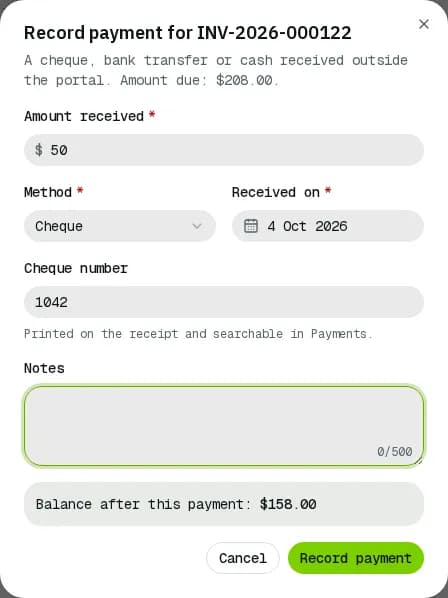
In the Invoices list, the row ⋯ > Record payment does the same. Ticking several open invoices and clicking Record payment in the bar marks them all paid in full today.
One payment for several invoices
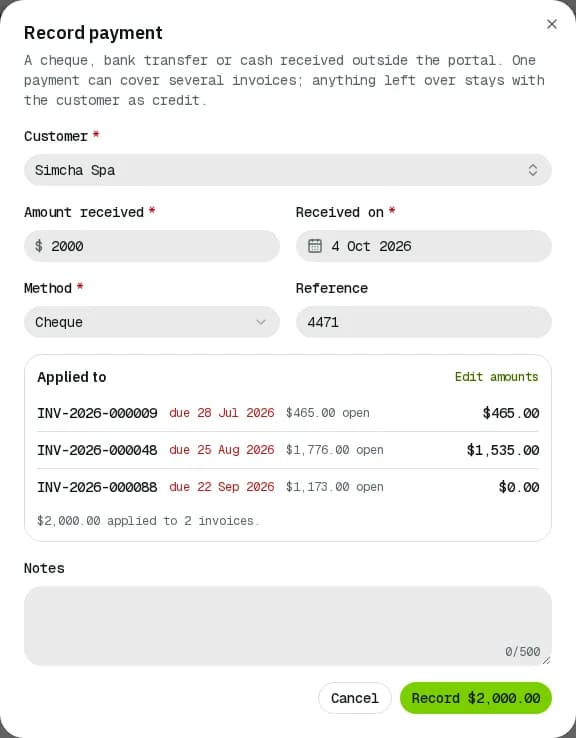
- Open Payments and click Record payment.
- Pick the Customer and fill Amount received, Received on, Method and Reference.
- Applied to lists the customer's open invoices and splits the money oldest due date first. Click Edit amounts to split it yourself, or Oldest first to go back.
- Whatever is not applied is kept as customer credit; the line under the list says how much.
- Click Record …. One receipt number covers the whole payment; the message offers Receipt to open it.
Send a receipt
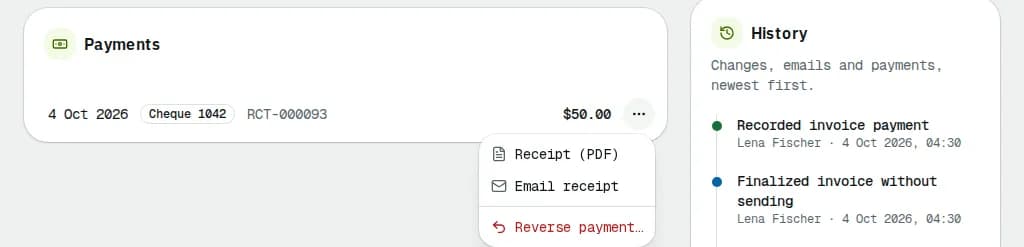
On the invoice, open the ⋯ of a payment under Payments and pick Receipt (PDF) or Email receipt (sent to the billing contact). In Payments, click the number in the Receipt column.
Reverse a wrong payment
Use this for a bounced cheque or a payment recorded on the wrong invoice.
- On the invoice, open the payment's ⋯ and pick Reverse payment….
- Type the Reason and click Reverse payment.
The amount is owed again and a paid invoice reopens. Credit used by the payment goes back to the customer, and an overpayment is taken back from their credit. The payment stays in the history, struck through and marked Reversed with your reason.
Find a payment
Payments lists every payment against invoices. Use the tabs All, Card, Manual and Credit, the search (invoice, customer, reference or receipt) and the received date range (All dates, with presets such as This month and Last month). Export > Export CSV downloads the filtered list. Card fees and payouts opens Card payments, where card fees and net amounts are shown.
Related articles
- How-toCreate and send invoicesBill a customer's delivered orders plus any fees or discounts, check the draft, send or finalize it, print it and chase payment.
- How-toExport to QuickBooks, Xero or a spreadsheetDownload invoices or payments for a period as a CSV laid out for the QuickBooks Online or Xero importer, and find the other CSV exports.
- How-toCard payments and StripeConnect your company's Stripe account so customers can pay invoices by card, follow the setup states, and see each card payment, its fees and refunds.
- ConceptWorked examples - cash on delivery and card paymentsReal numbers for cash collected at the door (short payments, who carries the loss, short remittances, aging) and for card payments (overpayments held as credit, refunds, voids, fees, net to you and the card surcharge).
- TroubleshootingMoney error messages explainedThe messages you can get when you void, edit or pay an invoice, record or refund a payment, receive cash on delivery, run payroll, change companies or your own plan: what each one means and what to do next.
- Page guideInvoice paymentsEvery payment against invoices in one list (card, cheque, transfer, cash and credit), with receipts, filters, the CSV export and the Record payment dialog that spreads one payment over several invoices.
Still stuck?
Tell us what you were trying to do. A person reads every message.