Profile tab and settings
The driver app's Profile tab and every screen under it: contact details, documents, vehicles, notifications, Preferences, Location and privacy, Devices and sessions, Help, About, sign out and deleting your account.
On this page
The Profile tab holds your details, documents and every app setting. The card at the top shows your name, the company you are working for (its logo, or its name), your email and phone. Tap your photo to change it (the camera badge). The app version is at the bottom.
At a glance
| Row | What it opens |
|---|---|
| Contact and emergency contact | Your mobile number and emergency contact |
| Documents | Your licence, insurance and other documents (2 need your action when something is due) |
| Pay statements | Your statements (when you can see earnings) |
| Payout account | Network drivers only |
| Vehicles | The vehicles you can pick: Assigned to you, then Company vehicles. Tap a vehicle for its details: type, year, capacity, odometer, insurance and registration, and the latest odometer readings. On your shift marks the one you are driving. Your own vehicles have Edit (all details, expiry dates, photos, Remove this vehicle). Contractors see Add my vehicle; employees are told their dispatcher assigns vehicles |
| Notifications | The inbox (3 unread) |
| Preferences | Alerts, theme, text size, language |
| Location and privacy | Location permission and your data |
| Devices and sessions | Where you are signed in |
| Help and support | FAQ, contact, report a problem |
| About and terms | Version, terms, support |
| Sign out | Signs out of this phone |
| Delete my account | Starts the account deletion |
Driver details
Below the card at the top, Driver details shows what your company has on file: Driver's licence (number, class, province or state and Expires date, with Expires in 12 days or Expired when it needs renewing), Date of birth, Home depot and Dispatch phone (tap to call). You cannot change these here; tell dispatch if something is wrong. The card is for company drivers only.
Contact details
Your name and email are managed by your company or the network team. You can change:
| Field | Notes |
|---|---|
| Mobile phone | |
| Contact name, Contact phone (under Emergency contact) | Who to call in an emergency |
Save contact details saves.
Documents
- Requested by your company: documents the office asked for, with the note and Due date, and Upload ….
- My documents: each document with Valid, Expires in 12 days, Expired, Rejected (with the reason) or In review, and Expires with the date. Renew or Replace uploads a new one. Independent (network) drivers can also renew while approved: the new version goes to review and your approval stays. If the upload is refused, the reason shows inside the sheet.
- Upload a document appears when your company lets drivers upload on their own; otherwise the screen says Your company manages your documents. You can upload only when they send you a request.
Uploading asks for a Document name (when needed) and an Expiry date (optional), then Choose photo and upload. Your company or the network team reviews it.
Preferences
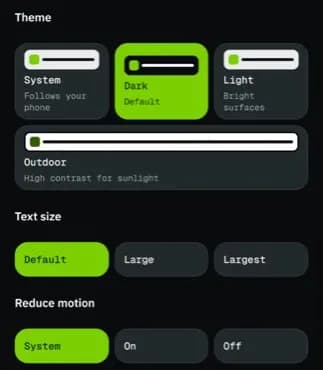
| Section | Choices |
|---|---|
| Language | System (follows your phone), English, Español, Français. The company's push notifications to your phone are written in the language you choose |
| Notifications | Orders (assigned, updated or cancelled), Offers, Pay (statements ready), Documents (expiry reminders and requests), Sound. When notifications are off in your phone's settings, Notifications are off for NemiRoute shows above them with Open settings, and the switches are greyed out until you turn them on |
| Security | Unlock with fingerprint or face (on an iPhone it names your sensor: Unlock with Face ID or Unlock with Touch ID): asked when you open the app and after 2 minutes away. Greyed out until you set it up in your phone settings. |
| Theme | System, Dark (default), Light, Outdoor (high contrast for sunlight) |
| Text size | Default, Large, Largest |
| Reduce motion | System, On, Off |
| Navigation app | Google Maps, Apple Maps or Waze for Navigate |
Location and privacy
| Part | What it shows or does |
|---|---|
| When we use your location | When the app collects your location and why |
| Permission status | While using the app, Always allowed, Denied, Not asked yet. Allow location, Allow all the time (optional) (iPhone: Allow Always (optional)) or Open system settings fix it. |
| Your data | Download my data: a copy of your profile, documents, shifts, orders and pay. Open last download opens the last copy. |
See Location and battery settings.
Devices and sessions
Each device you are signed in on, with the app version and last active time; This device marks the phone in your hand. Sign out signs one device out. Sign out of all devices asks Sign out everywhere?: every device, this one included, must sign in again.
About and terms
Your company (the logo or name of the company you are working for; not shown as a network driver), App version, Terms version, Language, Support (the support phone), Documents you accepted (each terms or privacy version with the date you accepted it), Privacy policy, Driver terms and Delete my account.
When NemiRoute publishes a new version of the terms or privacy policy, Updated terms opens the next time you open the app. Read the full text opens the document; I accept records your acceptance (your company sees who accepted which version and when on your driver page). Sign out is the other way out.
Profile photo
Tap your photo. Profile photo offers Take photo (front camera) or Choose photo, then a square crop. Your company sees the new photo and your phone and emergency contact changes on your driver page.
Documents
Under Requested by your company, a request shows the reason in red when the upload was rejected. Upload ... asks for the optional Document number (optional) and Expiry date (optional), then Take photo and upload or Choose photo and upload. Required by your company lists documents your company needs and you have none of yet.
Sign out
Sign out asks Sign out?: you need your password to sign back in, and signing out does not end your shift. Stay signed in goes back.
Delete my account
Delete my account opens Delete your account?. Type DELETE (in French SUPPRIMER, in Spanish ELIMINAR) in the confirm box and tap Delete my account. Deletion happens 30 days after you ask; until then the screen says when, and Keep my account cancels it.
Related articles
- How-toClock in, take breaks and clock outStart your shift with the vehicle check, take breaks, and end the shift with the odometer reading.
- ConceptShare company vehicles between driversChoose whether drivers pick only their assigned vehicles or any company vehicle, how the one-driver rule and releases work, and how to read the vehicle usage numbers.
- How-toInstall the app and sign inAccept your invitation, install the NemiRoute driver app, sign in with your company ID and turn on fingerprint or face unlock.
- How-toLocation and battery settingsWhich location permission to give, when NemiRoute shares your location, and how to keep Android from stopping it.
- How-toContact dispatch and get helpMessage or call your dispatcher, read notifications, and report a problem with the app.
Still stuck?
Ask your courier company: they can see your account. Or tell us what you were trying to do.